Verify Value Matching
Verify curated mappings from source attribute values to target attribute values
Installation 🛠️
For system-specific installation instructions (pick ONE for your CPU architecture):
- AMD64: follow the Linux/Unix installation guide
- ARM64 (Apple Silicon): follow the macOS installation guide
Overview ✅
This guide walks you through verifying value mappings after schema alignment. You will start a new session, enable Developer Mode, upload a ground truth CSV for value mapping verification, and use the heatmap and Data Wrangler to confirm results.
Start a New Session 🗂️
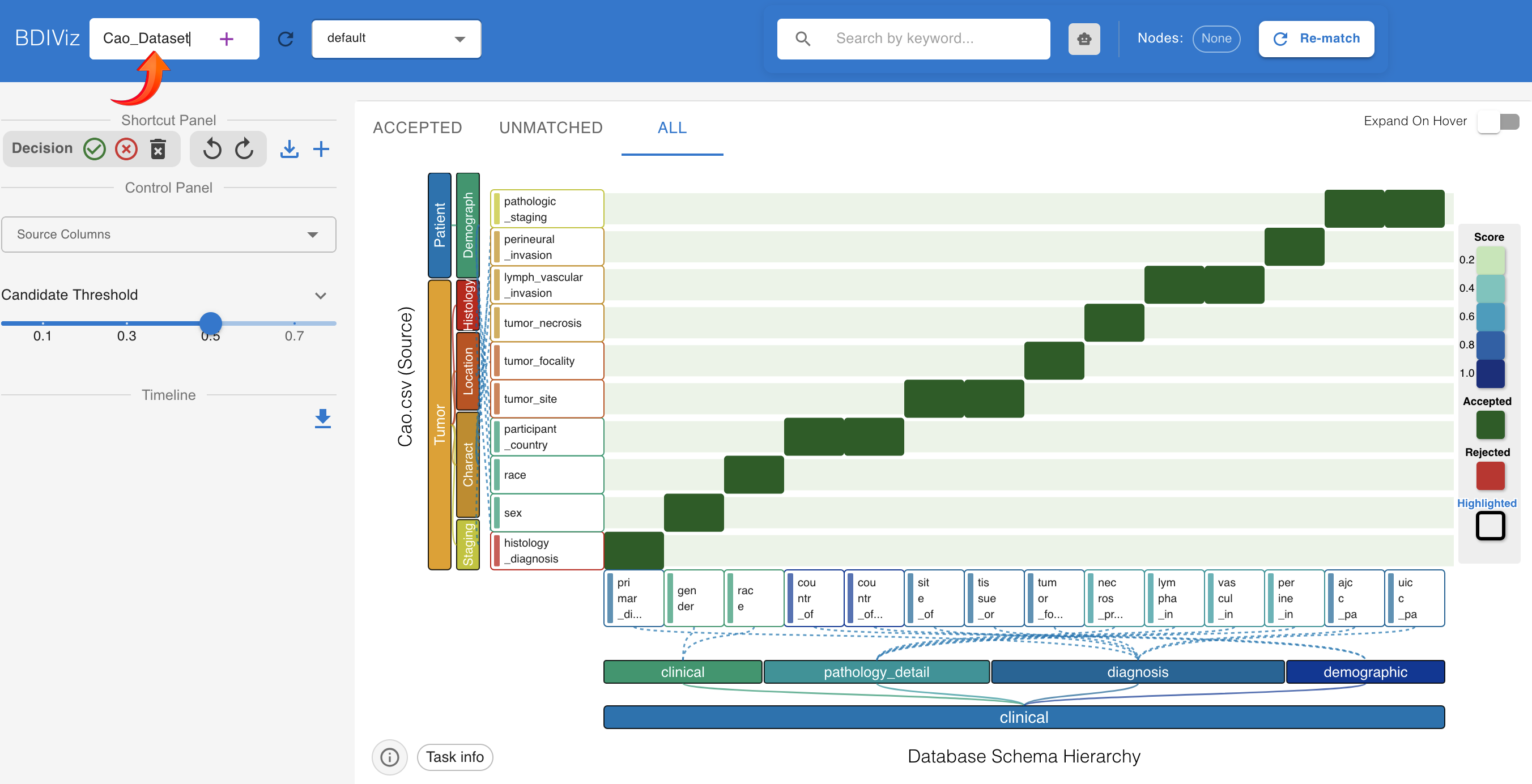
- On the far left of the top navbar, enter a name in the New session field to create a new session.
- The new session inherits data from the default session, so you can proceed without re-uploading.
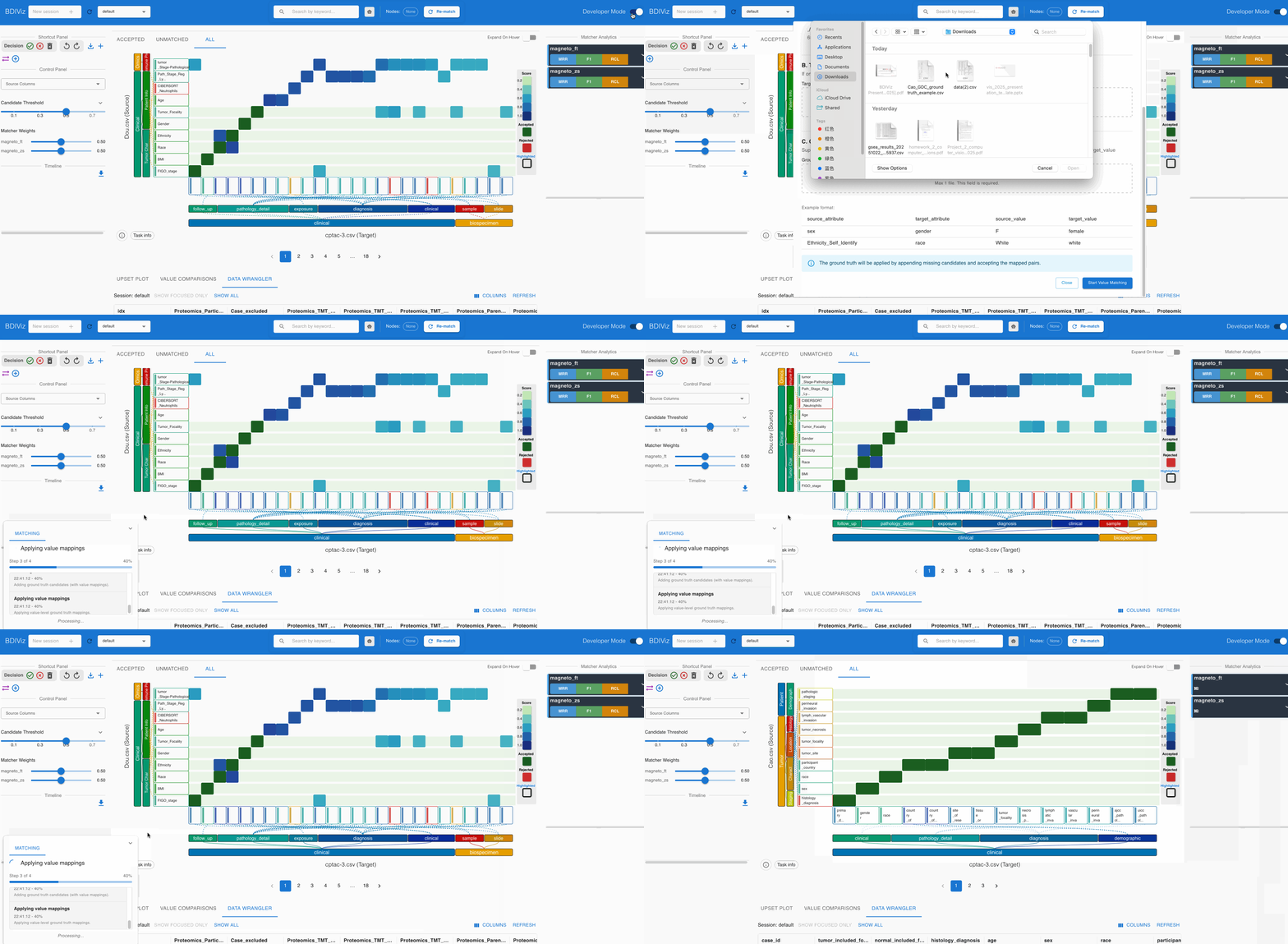
Toggle Developer Mode 🧰
- How to open: Click the arrow icon on the top-left corner to open the side panel, then toggle Developer Mode.
- What it enables:
- Upload pre-annotated ground truth for schema matching (attribute pairs)
- Upload pre-annotated ground truth for value mappings (value-to-value)
- Upload custom matchers (not covered here)
Developer Mode surfaces additional upload slots and debugging panels designed for power users and evaluators.
Upload Your Data 📦
For verifying value mappings, you need to load the following files:
- Source table (required): your raw dataset CSV, e.g.,
Cao.csv. - Target table (not needed): leave empty to use the built-in GDC schema as target.
- Ground truth CSV (required for verification): a file with exactly four columns:
source_attributetarget_attributesource_valuetarget_value
Example (subset):
  source_attribute,target_attribute,source_value,target_value
FIGO_stage,figo_stage,IA,Stage IA
FIGO_stage,figo_stage,IIIC1,Stage IIIC1
Ethnicity,ethnicity,Hispanic or Latino,hispanic or latino
Race,race,White,white
Gender,gender,Female,female
After files are ready, click the blue Start Value Matching button at the bottom-right to launch the verification task.
Review Schema Matches on the Heatmap 🔥
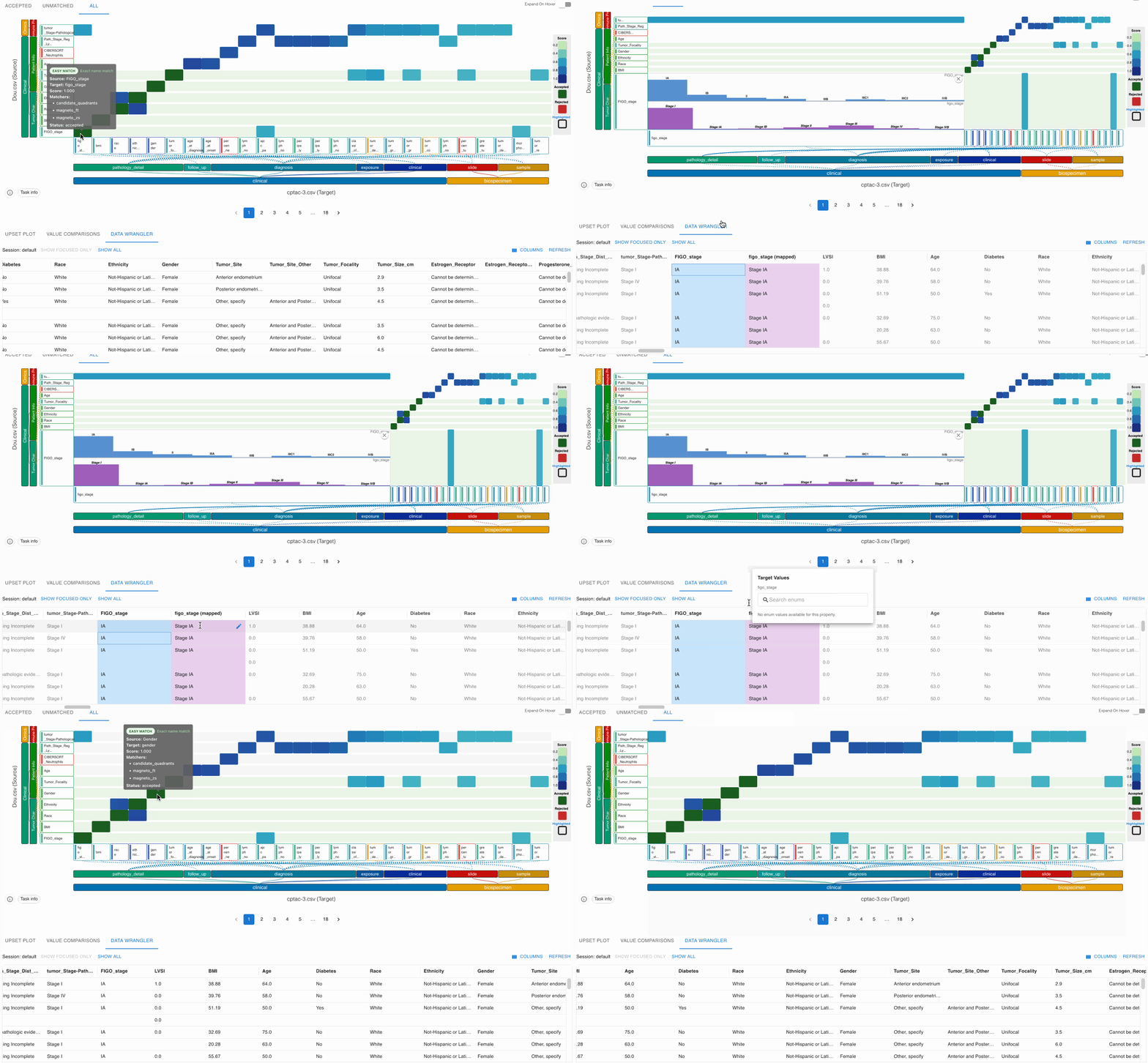
- The heatmap displays candidate matches between source (y-axis) and GDC target attributes (x-axis). Ground-truth schema pairs included in your CSV should appear as heatmap cells.
- Hover a cell to preview details; click to expand the embedded node with distributions and comparisons.
- Use the control panel filters to narrow candidates by similarity, attribute, or status.
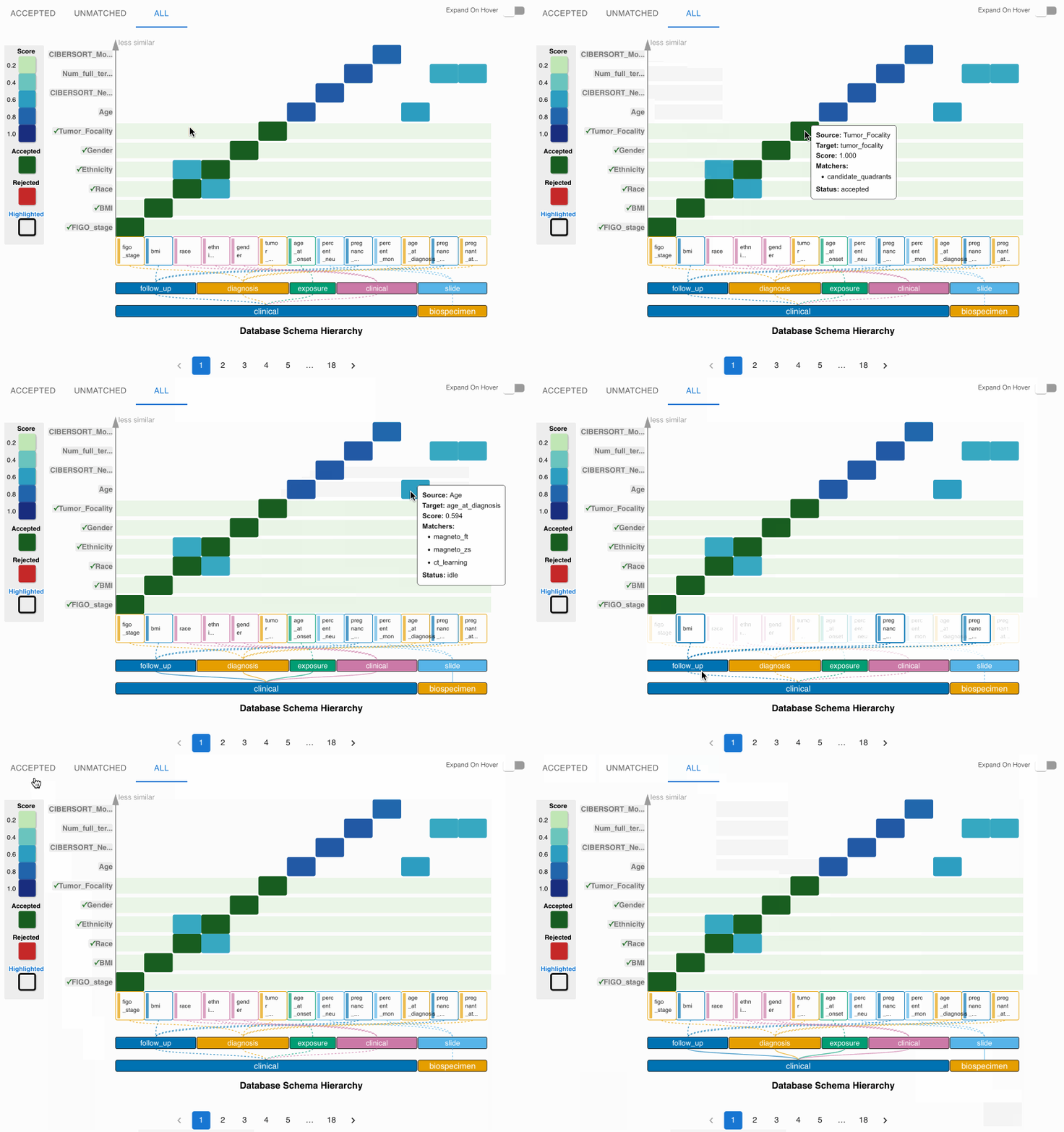
Need a refresher on filters and controls? See explore-matches.
Verify in the Data Wrangler 📊
When you click a heatmap node:
- The lower DATA WRANGLER view focuses on the selected source attribute (highlighted with a blue background).
- The matched target attribute appears appended to the right of the source attribute.
- If a value mapping is provided in your ground truth, the target column shows the mapped target values applied to each source value.
- If no value mapping is provided for a source value, the corresponding cell in the target column will be empty.
Use this view to scan for mismatches, missing mappings, or unexpected blanks. Adjust your ground truth and rerun if needed.
Edit and Correct Mapped Values ✏️
If a mapped value looks incorrect:
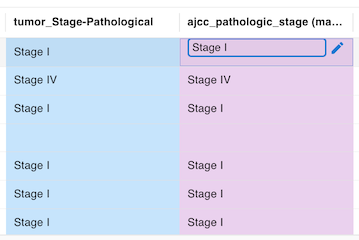
- Hover the cell in the mapped target column within the DATA WRANGLER table.
- Choose one of the following:
- Inline edit: Click the current mapped value to edit directly, then press Enter to apply.
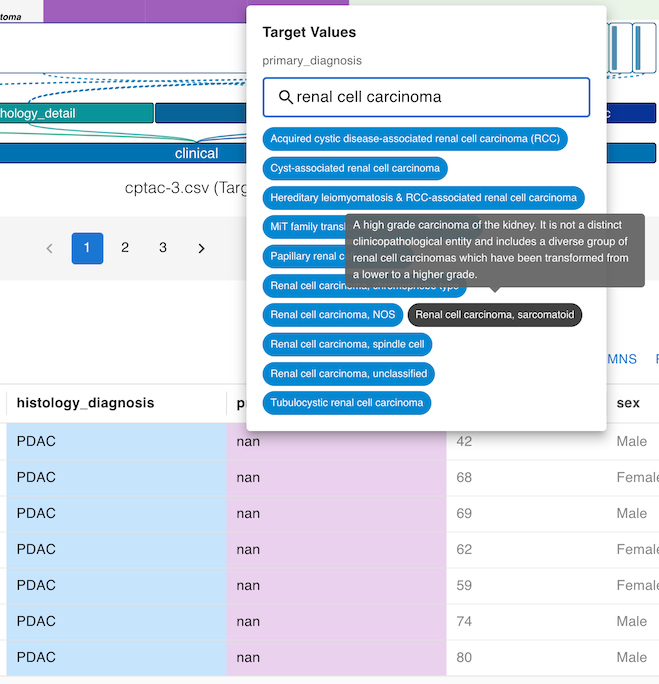
- Edit via popover: Click the edit icon on the right side of the cell to open a popover listing all available target schema values as selectable chips. Click a chip to apply it.
- Inline edit: Click the current mapped value to edit directly, then press Enter to apply.
Note: When you change the mapped value for a specific source_value, the update is applied to all rows in this source attribute that share the same source_value.
Use the Harmonization Assistant for Value Mapping Suggestions
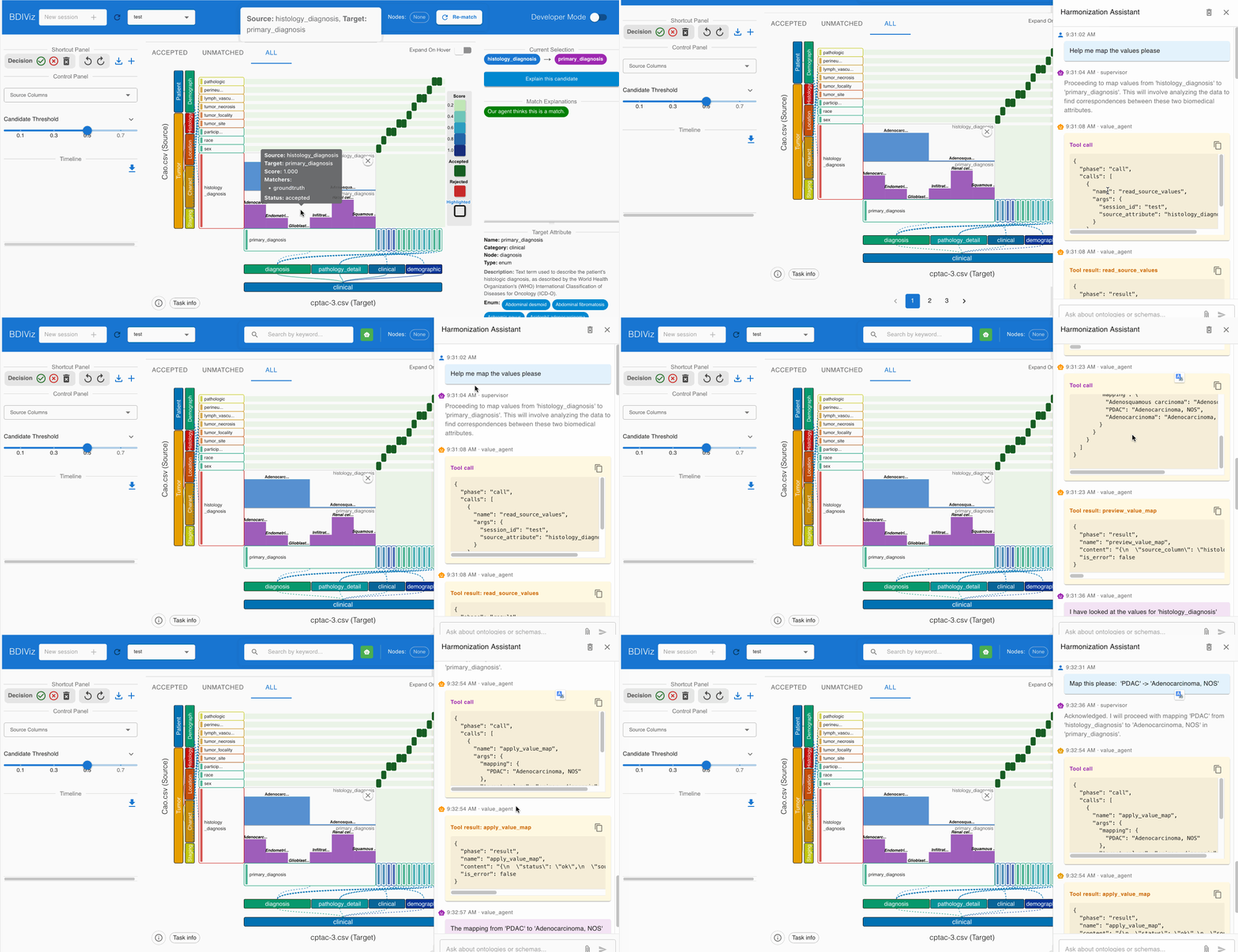
Use the Harmonization Assistant to quickly suggest or apply value mappings for both categorical and numerical columns.
- Select a heatmap node, then right-click to open the Harmonization Assistant panel.
- Ask the agent with a clear prompt:
- Example (categorical): “Map source values in
Raceto GDCracevalues.” - Example (numerical): “Suggest bins for
BMIaligned to GDC categories.”
- Example (categorical): “Map source values in
- Review and apply the suggested mappings to update the target column.
To reset the conversation, click the second button in the panel’s top-right to clear the chat history.
See the full assistant guide: /bdi-viz-manual/docs/manual/llm-agent/.
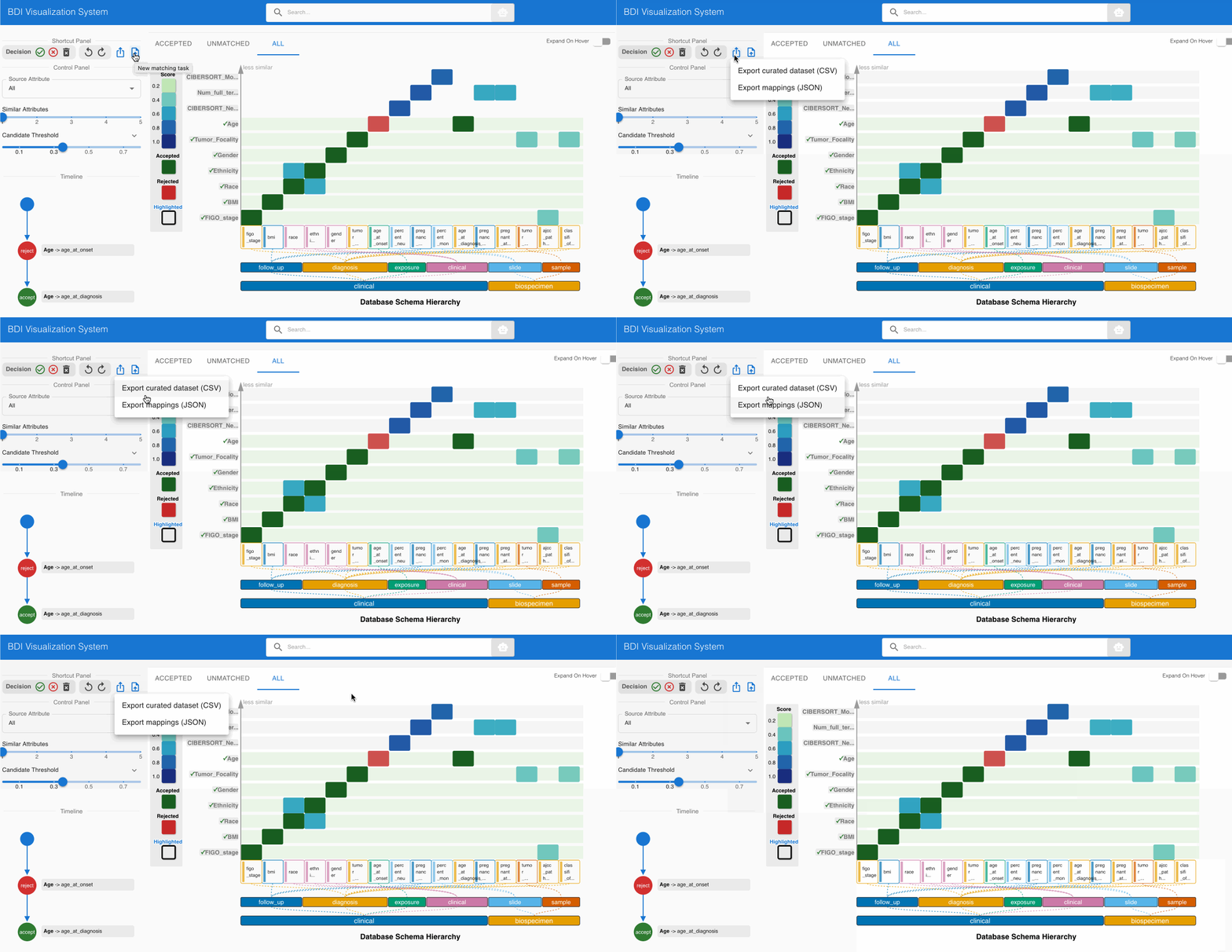
Export Mapping Results 📤
After applying all changes, export your finalized value mappings:
- Open the Shortcut Panel (top-left).
- Click Export Matching Results.
- In the format options, select CSV 4-column to generate a ground truth-like file.
The exported CSV contains four columns:
source_attributetarget_attributesource_valuetarget_value